
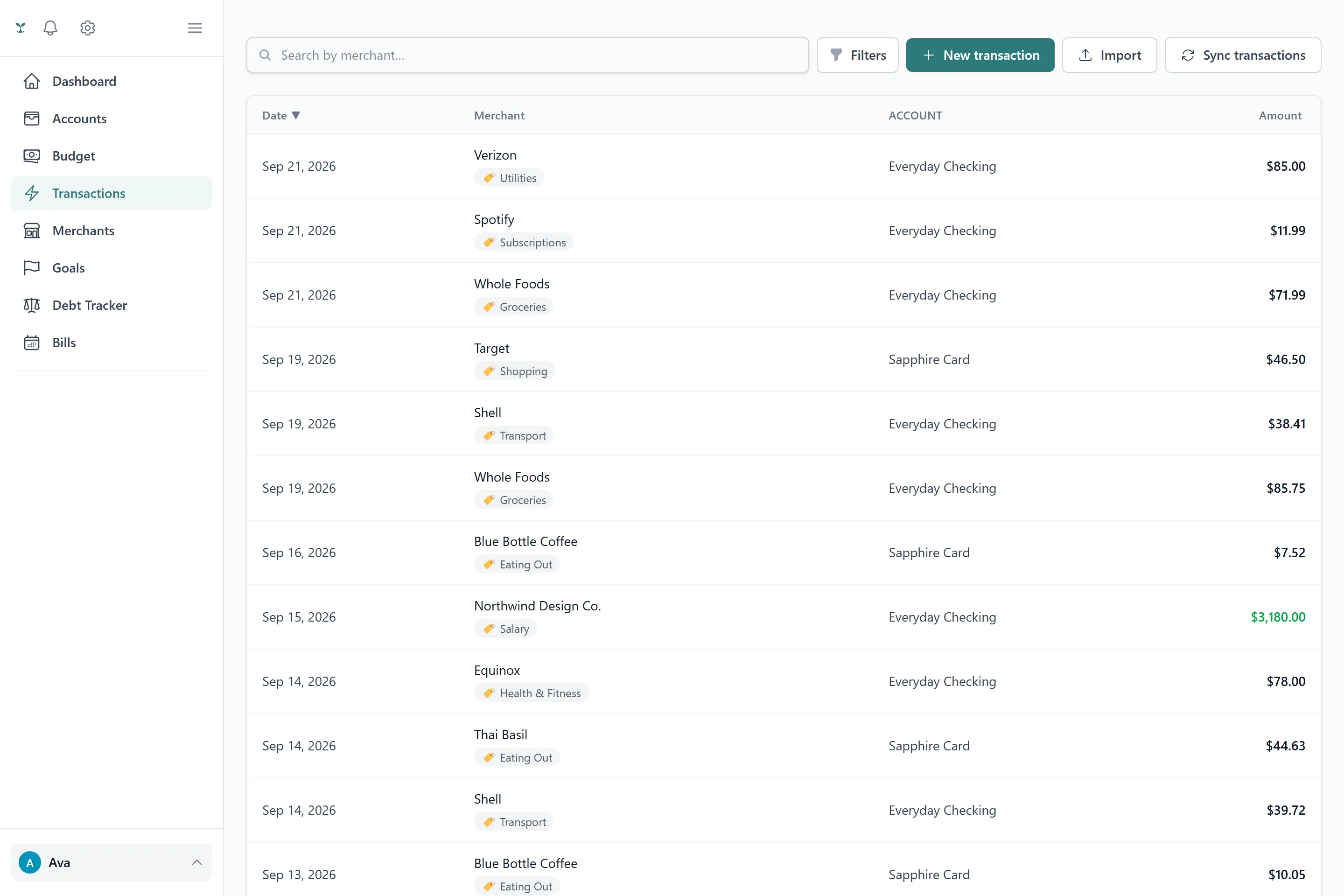
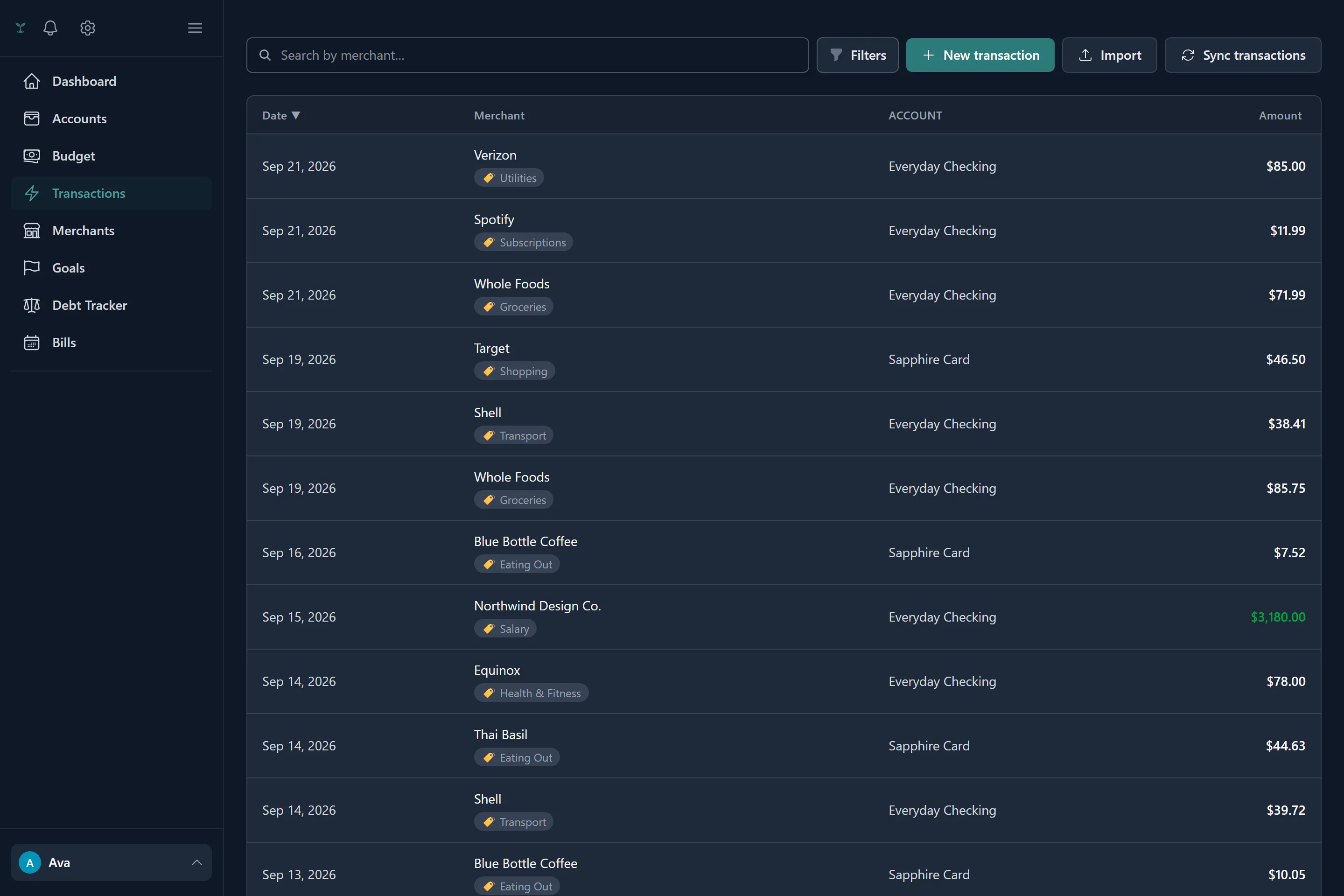
Where a category comes from
Every transaction’s category is decided by checking three sources, in a fixed order, and stopping at the first match:
- A rule you wrote — see below.
- The category you most recently chose by hand for that same merchant. If you’ve corrected “Trader Joe’s” to Groceries before, the next Trader Joe’s charge gets Groceries too, with no rule needed.
- Your bank’s own category mapping, but only during the one-time budget generation pass from history — it’s deliberately never consulted on ordinary day-to-day syncing after that. Banks group merchants coarsely enough that letting it apply going forward would mean correcting one purchase silently changing how a completely unrelated merchant gets categorized, just because your bank happens to lump them into the same bucket.
Every categorized transaction is labeled with which of these decided it, so you always know why something landed where it did — and nothing is categorized by a source you can’t see or override.
Categorization rules
A rule matches transactions by merchant text — contains, equals, starts with, or ends with — and assigns a category to everything that matches. Rules take priority over everything else, including a category you’ve chosen manually for that merchant in the past.
You don’t have to write rules up front. Correct any transaction by hand and Tavera Money offers to turn that correction into a rule, telling you up front how many of your existing transactions it would also apply to retroactively — so one correction can clean up months of history in the same motion, or just quietly cover the one transaction if you’d rather leave the rest alone.
The review queue
A transaction categorized automatically (by rule, history or the bank mapping) is flagged as needing review rather than treated as settled immediately — it’s a guess, even a good one, until you’ve had a chance to glance at it. A flag clears the moment you confirm or correct the transaction, or on its own after 30 days if you never touch it, so the queue never becomes something you’re obligated to work through by hand.
Splitting a transaction
One transaction can be divided across several categories — a big-box store run that’s part groceries, part household — with a live check that the parts add back up to the total before you can save it.
Transfers between your own accounts
Moving money between two of your own accounts isn’t spending, so Tavera Money looks for the matching pair automatically: an outflow from one account and an inflow to another, opposite amounts, landing within a few days of each other. Matched pairs are excluded from your spending totals on their own. If your bank already tags a transaction as a transfer and no counterpart ever shows up (the other side lives at an institution you haven’t linked, say), it’s still counted as real money leaving rather than silently disappearing from your numbers.
Importing transactions from a CSV
For a manual account, or for history a bank connection didn’t bring in, you can import a CSV. Common column headers (Date, Amount, Description/Payee/Merchant, Notes/Memo) are recognized automatically, so most bank or spreadsheet exports work without reformatting first. Every row is validated and checked against both your existing transactions and the other rows in the same file before anything is written, so you see exactly what would be added — and what looks like a duplicate — before you confirm the import.