
Budgeting with irregular income
How to set up irregular income: priority tiers, funding your plan as money lands, Expected base pay, and the Steady Pay buffer for lean months.
Updated 12 October 2026
Who it’s for
A normal budget assumes the same amount arrives every month and plans all of it on the 1st. If you freelance, do gig work, earn commission or tips, or get a salary with bonuses and overtime on top, that assumption is wrong most months. Irregular income mode changes how your budget works: instead of planning money you don’t have yet, your plan is funded as money actually lands, in an order you choose.
It’s included on every plan, including the free Basic plan, and works with manual transactions as well as linked banks.
Turning it on
Open the budgets page, go to Budget settings, and choose Set up irregular income. (It’s also under Settings → Preferences.) The setup takes three steps.
1. Your income. First, how you get paid:
- Base pay + variable — a steady paycheck, plus commission, bonuses, tips or overtime on top. Tavera Money looks through your income history for a regular deposit and offers it (“We found about $2,400 from Acme every other week”), or you can type the take-home amount, how often it’s paid and the next payday. Your plan lives inside the base pay. Everything on top is a bonus.
- It all varies — freelance, gig work, contracts. No regular paycheck.
If it all varies, you then choose what your plan is built on. You’ll see a chart of your income over the last 12 months, and pick:
- A lean month — lower than 3 out of 4 of your months. The safest place to start.
- A typical month — your middle month. Expect to dip into Steady Pay more often.
- Pick my own number — you know your work best.
Tavera Money tells you how many of the last 12 months came in below the number you chose. Steady Pay is built to cover exactly those months.
2. Priorities. Sort your categories into the three priority tiers. Moves save right away.
3. Extra money. Choose where money goes once the plan is fully funded, and what happens when a deposit lands. More on each below.
These settings belong to the household, so everyone you share a budget with is on the same plan.
Priority tiers
Every spending category sits in one of three tiers:
| Tier | Filled | Typically |
|---|---|---|
| Essentials | First, every time | Rent, groceries, utilities, insurance, tax set-aside |
| Important | Next in line | Debt payments above minimum, savings goals |
| Extras | Last, skippable | Eating out, hobbies, subscriptions |
Money fills the tiers in order, and within a tier, in the order the categories are listed. Each category is filled completely before the next one gets anything. There’s no proportional sharing: a short month is meant to cover rent in full, not cover everything a little.
The setup shows whether your Essentials fit inside the plan you chose. If they don’t, that’s common and fixable: move something down a tier, or plan to lean on Steady Pay in your slowest months.
Funding your plan
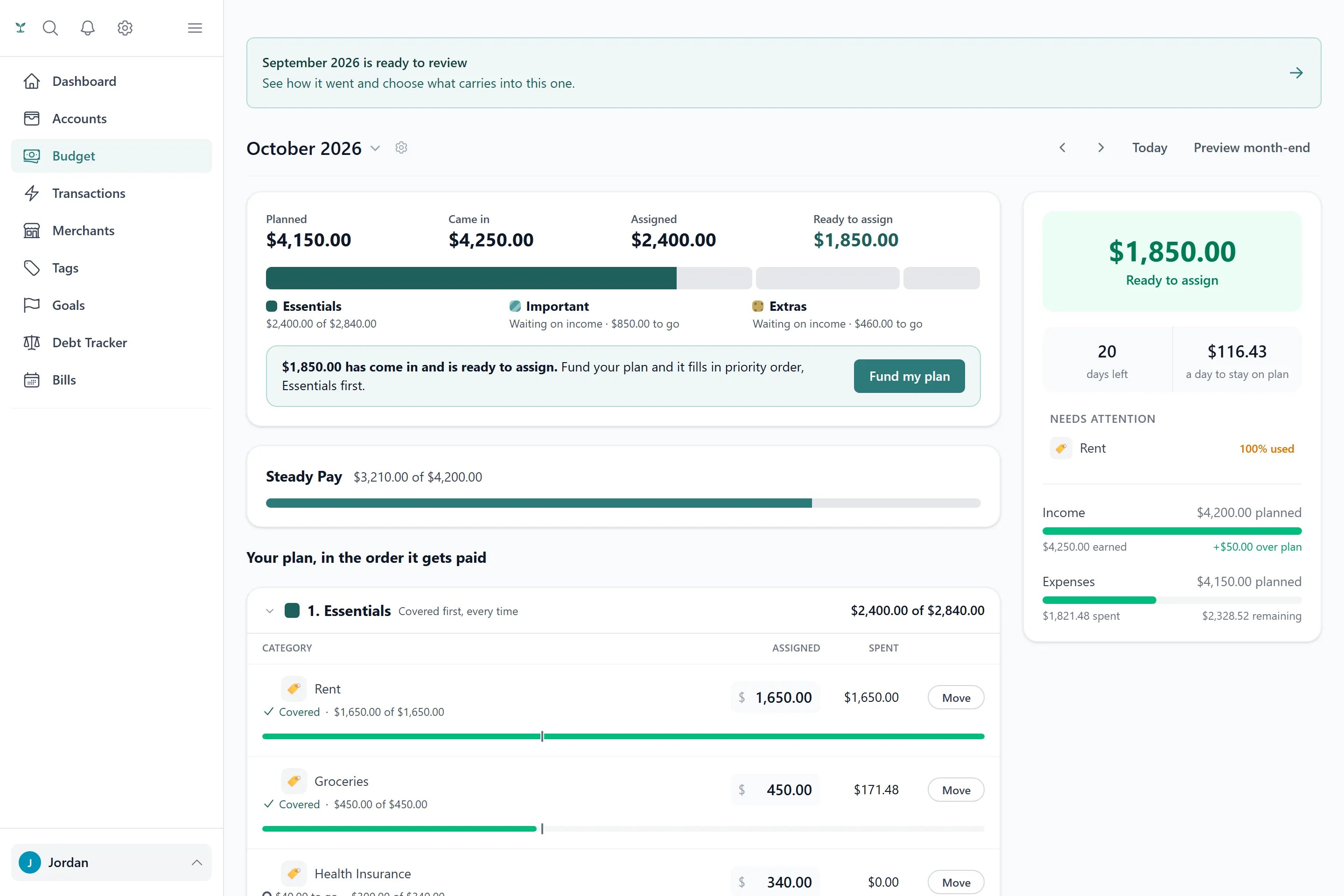
When money comes in, it’s ready to assign until it funds the plan. Choose Fund my plan on the budgets page and you’ll see exactly which categories the money would fill, in order. Skip any category for now and its share moves on to the next one in line, or waits in Ready to assign. Nothing changes until you confirm, and every funding can be undone.
How deposits are handled is up to you:
- Always ask me — every deposit waits for your tap.
- Ask me, but cover Essentials automatically — Essentials fill the moment money lands. You decide the rest.
- Fund everything automatically — follows your priority order. Any deposit can be undone.
Base pay: Expected until it’s real
If you chose base pay plus variable, your next paycheck shows on the budget as Expected, drawn as an outlined, hatched bar on the categories it will fill. It’s never counted as money you can spend until it actually arrives. When it does, it funds the plan automatically, in priority order. Variable pay on top follows your funding setting.
If a paycheck comes in different from what was expected, Tavera Money asks what to do: expect the new amount from now on, treat it as a one-off, or skip it. And if you’ve already spent money that the next paycheck was planned to cover, the budget points it out.
Steady Pay
Once your whole plan for the period is funded, extra money can go to one of three places:
- Steady Pay (recommended) — your income buffer. It’s an ordinary savings goal, shown on your Goals page, aiming for one lean month.
- One of my goals — a vacation fund, say. You can switch to Steady Pay any time.
- Ask me each time — leftover money waits in Ready to assign.
At the start of each budget period, Steady Pay offers to pay you a regular paycheck: your lean month, scaled to the length of your budget period, capped at what’s in the buffer and what the plan still needs. Say Not this period if you don’t need it. If Essentials are still short partway through a period, it offers to cover just those instead. Any payment from Steady Pay can be undone.
Steady Pay tracks the money; it doesn’t move it between bank accounts. Link the goal to the savings account it actually sits in and Tavera Money tells you how much to move — into savings after a good deposit, or back to checking when Steady Pay pays you.
The month-end recap
The monthly recap adds a few lines when you’re on irregular income: whether Essentials were fully covered, and for how many periods running; whether a lean month was carried by Steady Pay and what the next good month tops back up; and when you’re living on last month’s income, or Steady Pay already holds next period’s paycheck.
Switching back
Choose Switch to regular income in Budget settings or Preferences. The change applies from the current budget period on. Earlier periods are never restated, in either direction, so your history always reads the way it did at the time.
Related
- How budgets and rollover work
- Goals
- How to budget on an irregular income, our longer guide